
How do you let an AI agent work in a browser when a website requires sign-in?
A website asks for a username and password, sends an SMS code, displays a CAPTCHA, or checks that a real person is present. What should you do with an AI agent in that situation?
With Lite Browser, you handle the sign-in. Open the protected page, enter your details directly on the website, and complete the check. The agent then continues in the same session: it can find the records you need, fill forms, upload files, build a spreadsheet, or download a finished report. You never have to send your password or code in chat.
This covers tasks that usually end with “now someone has to open the dashboard and finish it by hand.” Ask for the result in plain language: open it, find it, collect it, upload it, check it, and send me the finished file.
Open the link — the agent installs this skill itself. Free trial, no card.
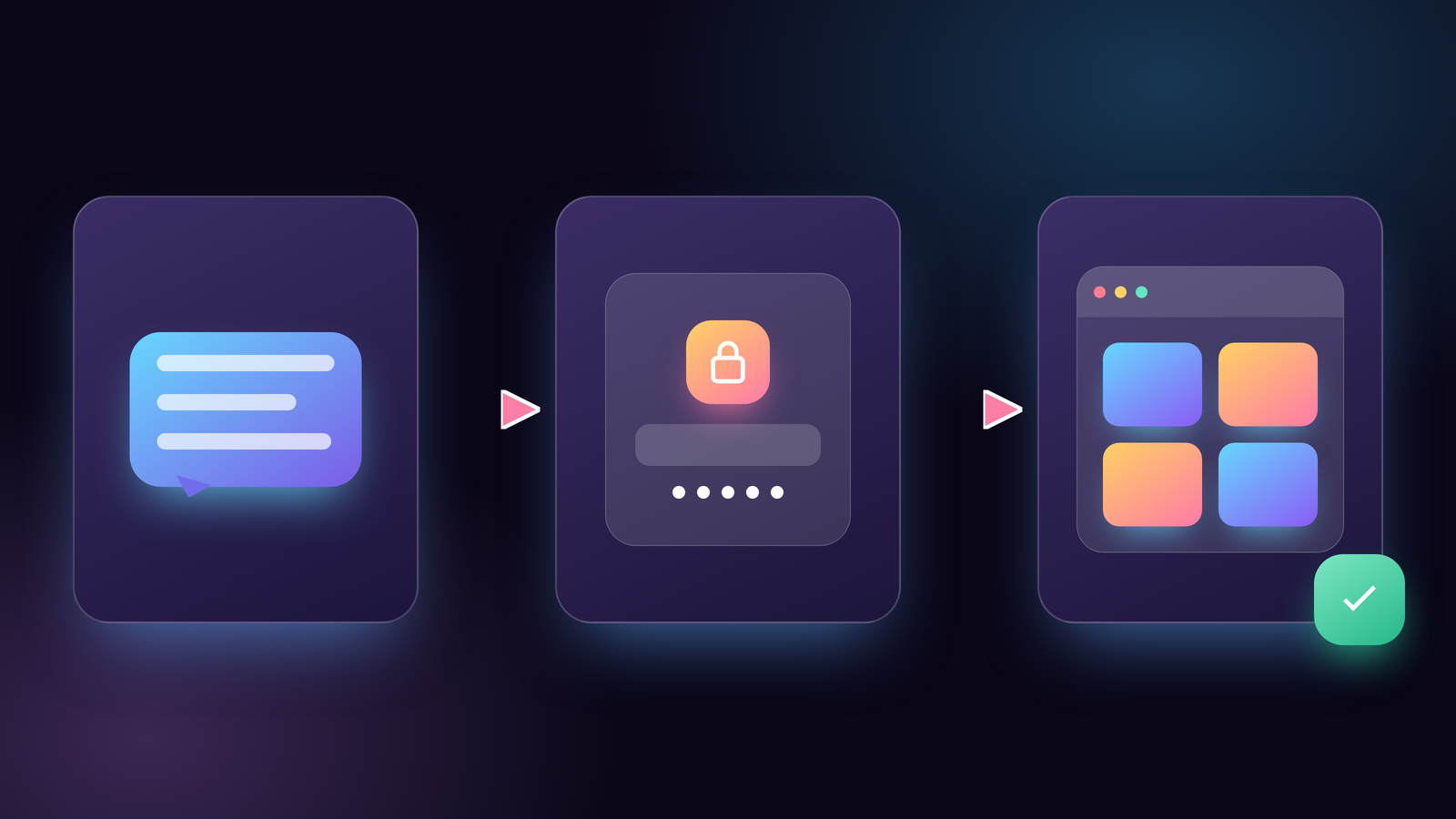
How to start an AI agent in a browser in three steps
1. Open your Lite Browser
Send this command in a private Telegram or MAX chat with the agent:
/browser
Lite sends a link to a protected page with your browser. If you have not set a Lite password yet, the service first asks you to create one and then shows the next step.
2. Sign in yourself
Open the website and authenticate. Enter your password, SMS code, two-factor code, and CAPTCHA on the website, never in a message to the agent.
In regular /browser mode, you and your agents can work at the same time. To hide manual
input from every agent on the account, send:
/browser blind
After signing in, return to the chat and send:
/browser continue
The agent receives access for 15 minutes. Regular /browser mode is enough for most tasks.
3. Ask for a concrete result
Write as if you were assigning the task to a colleague: state what to open, what to produce, and where to stop.
Use the attached spreadsheet to create five records, upload the images, and show me the result. Stop before publishing and wait for my approval.
There is no separate “hand over control” button in regular mode. Once you have signed in, the agent can create its own tab and begin. Keep the viewer open if you want to watch, or close it on your phone—the work continues.
What can you ask an AI agent to do on a website?
An anonymized review of current requests shows that users rarely want “browser access” as an end in itself. They want a finished file, document, post, updated website, report, or spreadsheet. Ask for that end result rather than a list of clicks.
Collect new records and changes on a schedule
Every morning, open the dashboard, find new records that match my conditions, put them in a spreadsheet, and send me the file with source links.
If the website requests another check, the agent pauses and asks you to open the browser. You complete CAPTCHA or enter the SMS code yourself, then the work continues.
Fill records from a spreadsheet
Use the rows in this file to fill the records, attach the images, and check every required field. Do not publish anything; show me the drafts.
This moves approved data into a work dashboard without copying every row by hand.
Download reports and assemble documents
Download last week's reports, verify that all seven days are present, combine the figures in one spreadsheet, and return the source files with the summary.
The result is easy to verify: the source documents, final spreadsheet, and relevant page links should all open.
Upload materials and prepare a publication
Upload the approved text and image, check the preview, and stop before publishing.
The agent handles repetitive steps while you keep the final decision. If you want the agent to publish within clear boundaries, say so explicitly in the task.
Working in a web dashboard without a separate integration
Some services do not offer a useful programmatic connection. Others keep the action you need inside their regular web interface. Lite Browser lets the agent use the same pages, buttons, and forms that a person uses.
This works across many kinds of work systems: product and property dashboards, site editors, reporting tools, knowledge bases, forms, and internal panels. The specific brand does not matter. You need legitimate access, a task allowed by the website's rules, and a result that can be checked.
The browser does not remove website restrictions. It supports an allowed path: a person signs in → the agent handles the routine → the person receives a verifiable result.
Shared and blind modes

| Command | When to use it | What happens |
|---|---|---|
/browser |
Regular work | You and your agents can work at the same time; start the task immediately after sign-in. |
/browser blind |
Entering a password, SMS code, or other sensitive information | Every agent on the account is disconnected from the browser. |
/browser continue |
After signing in in blind mode | Automation receives access for 15 minutes. |
/browser stop |
The work is finished | The browser stops while its profile and sign-ins are preserved. |
/browser revoke |
You need to revoke access | The browser switches to blind mode. |
Several agents can use the same account browser, but each should work in its own tab. Concurrent actions in one tab can conflict.
Does the sign-in persist between tasks?
/browser stop stops the browser without deleting its profile. The next time it starts,
many websites remain signed in, so you do not have to repeat setup before every task.
No one can guarantee a permanent sign-in: each website decides when to expire a session or
request another check. If that happens, open /browser and sign in again.
Passwords, CAPTCHA, and safe boundaries
- Enter passwords, SMS codes, and CAPTCHA yourself on the page. Never send them in chat.
- Use
/browser blindfor fully private input. It disconnects every agent on your account until you send/browser continue. - State the boundary of any external action. For example: “show me a draft,” “stop before submitting,” or “publish these five approved records.”
- Do not use the feature for banks, government services, or crypto wallets.
- Do not ask the agent to bypass CAPTCHA or blocks. A person completes the check, and the website's rules still apply.
Each user's browser is isolated. An agent on one account cannot access another user's browser.
Install the open “Browser after sign-in” skill
Fast setup in Lite. Click “Try in Telegram” or “Try in MAX” to attach the skill to your
agent automatically. Then send /browser, sign in to the website, and describe the result
you need.
The agent instructions are public and contain no passwords, tokens, internal addresses, or user data:
If you already have a compatible AI agent, send it this message:
Use the skill at https://github.com/wybaeb/lite-skills/blob/master/skills/browser-handoff/SKILL.md for website tasks after my manual sign-in. I will enter passwords, SMS codes, and CAPTCHA only myself on the protected browser page.
Open the link — the agent installs this skill itself. Free trial, no card.
Read next
Frequently asked questions
- How can an AI agent use a website that requires a login and password?
- Open Lite Browser with /browser and sign in yourself. Your password stays on the browser page. The agent then works in the same saved session and completes the task you assigned.
- What if the website asks for an SMS code, 2FA, or CAPTCHA?
- Complete the check yourself on the Lite Browser page and never send the code or CAPTCHA answer in chat. To hide manual input from every agent on your account, use /browser blind and then /browser continue after signing in. This enables automation for 15 minutes.
- Can an AI agent automate a web dashboard without an API?
- Yes, when the website's rules allow it. The agent uses the regular web interface to fill fields, upload files, collect data, and download reports. A separate API integration is not required.
- Do I need to keep the browser viewer open?
- No. You can close the viewer after assigning the task and the agent keeps working. /browser stop stops the browser while preserving its profile and sign-ins, although the website may still expire its own session.
- Does the agent bypass CAPTCHA or website blocks?
- No. A person completes CAPTCHA, SMS, and other checks. The agent does not solve CAPTCHA, disguise automation, or override website rules. If a website prohibits automation, continue manually.
- Can I use Lite Browser for banking or government services?
- No. Banks, government services, and crypto wallets are excluded from Lite Browser workflows in both shared and blind modes.