
Instant overview
The web parsing data source lets you turn any public website or documentation page into a searchable knowledge base for your AI agent — no APIs, no spreadsheets, no manual copy-paste. Add a URL, configure how deep to crawl and how to split content, and the agent starts answering from that content. And here’s the differentiator: the system extracts images from the pages and includes them in search results, so the agent can show diagrams, screenshots, or product photos right inside the chat. Visitors get answers with the right visuals, and you get a single place to keep your docs and product pages in sync with the assistant.
Where it shines
Documentation and help centers
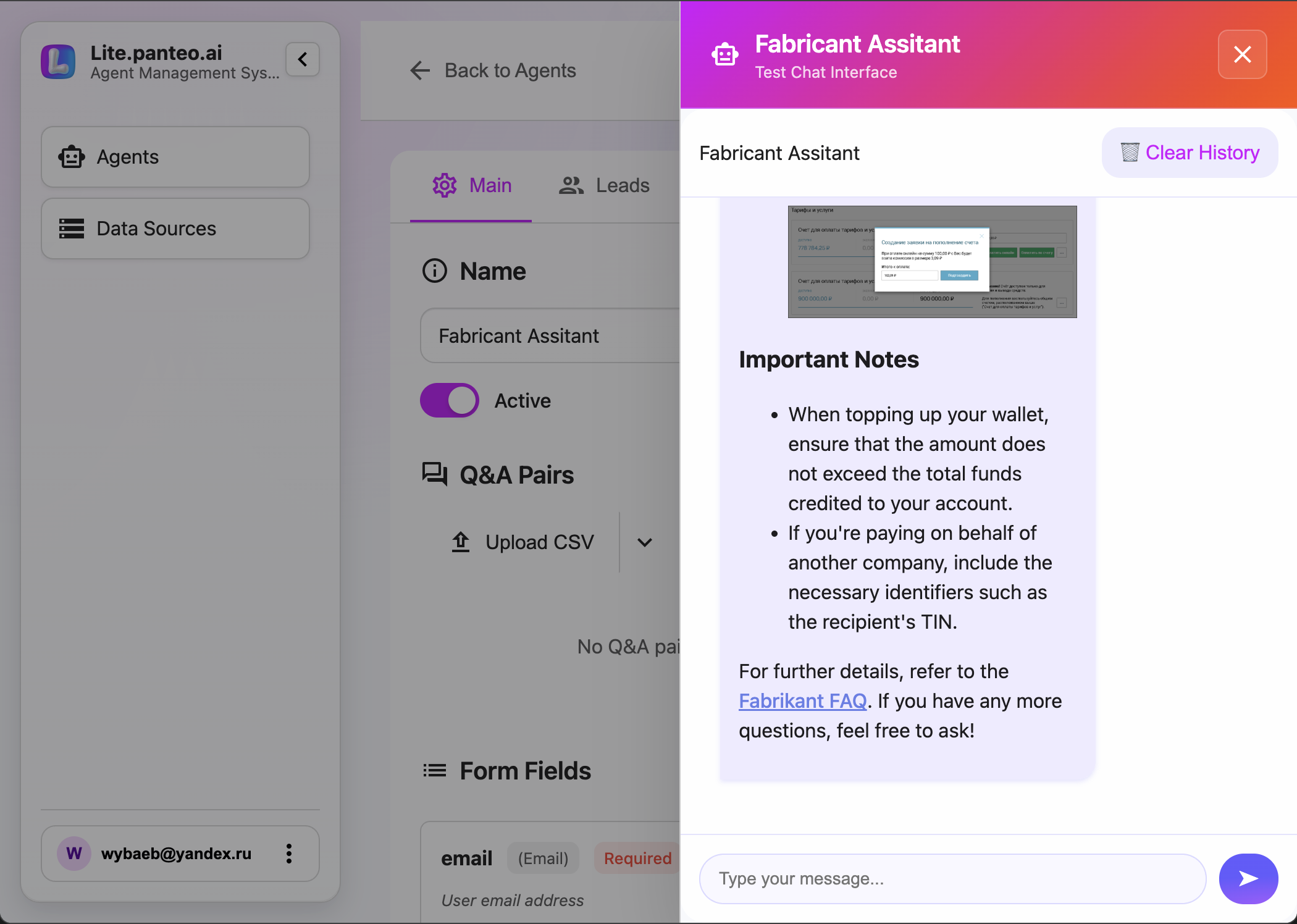
You already maintain docs on your site or in a help center. Keeping the same information in a separate Q&A base is tedious and gets outdated. With web parsing, you point the agent at your documentation URL. The agent indexes the text and extracts illustrations — flowcharts, UI screenshots, step-by-step images — and uses them in replies when relevant. A user asking “How do I reset my password?” gets the exact steps plus the matching screenshot from your help page.
Product pages and catalogs
Product descriptions, specs, and images live on your website. Instead of re-entering everything into tables or APIs, add the product or category URLs as a web parsing source. The agent finds the right product by semantic search and can surface the product image in the chat, so the conversation feels like a real consultation with visuals.
Competitor and market research (public content)
Sales and marketing teams often need to reference public pages — competitor features, pricing pages, or market reports. Add those URLs as read-only sources. The agent can compare, summarize, and cite content (and any charts or diagrams) without you maintaining a separate knowledge dump.
Support and onboarding
Onboarding guides, troubleshooting articles, and FAQ pages are perfect for web parsing. When a client asks “Where is the export button?” or “What does this error mean?”, the agent retrieves the relevant chunk and can show the illustration from the original article — reducing “send me a screenshot” back-and-forth and speeding resolution.
Standout feature: images in search and in the dialog
Unlike plain text-only indexing, web parsing extracts images from the parsed pages and attaches them to the corresponding text chunks. When the agent searches the source, it gets not only the text but also the associated images. That means the assistant can insert the right illustration into the reply — a diagram, a UI screenshot, or a product photo — so users see the answer and the visual in one place. No need to open the original link to understand; the chat becomes a self-contained, visual experience.
How to set it up in the UI
Step 1: Create a web parsing data source
-
Go to Dashboard → Data Sources → Add Source.
-
Choose Web parsing (or Web page / URL, depending on your dashboard label).
-
Fill in the main parameters:
Name — internal identifier (e.g.
docs,product_pages).Description — short note for your team (e.g. “Public documentation and help articles”).
URL(s) — one or more starting URLs to parse (e.g.
https://example.com/docs,https://example.com/help).
Step 2: Configure parsing and chunking
-
Crawl / scope (if available):
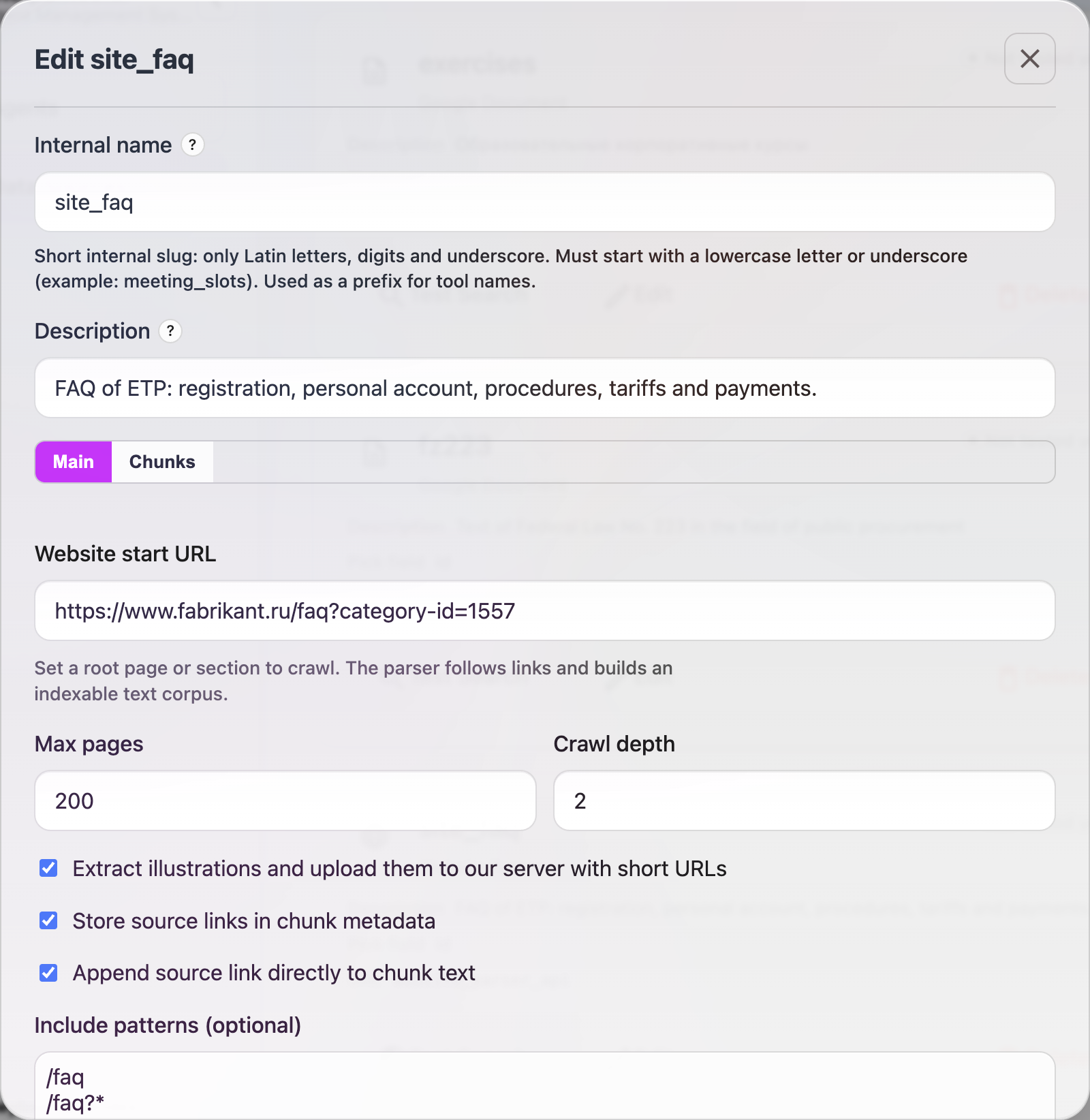
- Limit depth (e.g. only this page, or this page + 1–2 levels of links).
- Optional: restrict to certain path prefixes or exclude paths (e.g. exclude
/blog, include only/docs).
-
Chunking and extraction:
- Chunk size — how much text per searchable block (e.g. 500–1000 characters). Smaller chunks give more precise retrieval; larger ones keep more context.
- Overlap — optional overlap between chunks so border sentences aren’t lost.
- Image extraction — ensure the option to extract and store images is enabled (default in supported plans). Images are tied to the chunk they belong to and appear in search results for the agent.
-
Refresh / indexing:
- Trigger a full parse (e.g. Refresh or Re-index). The system fetches the page(s), extracts text and images, builds chunks, and indexes them.
Step 3: Check chunks and images
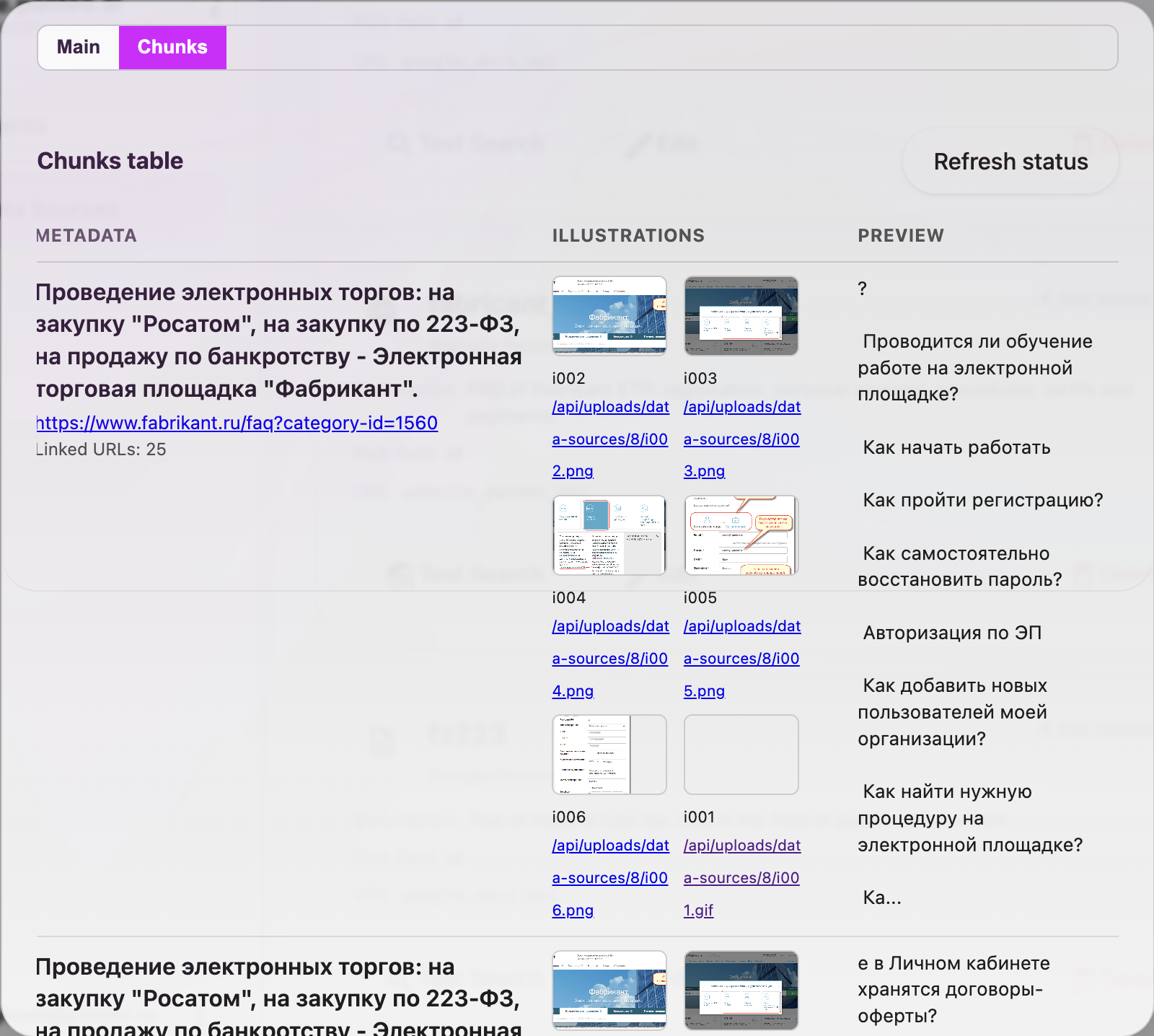
- Use the Preview or Chunks view to see the created chunks and confirm that images are attached where expected (screenshots, diagrams, product images).
Step 4: Attach the source to your agent
- Open Dashboard → Agents and select the agent.
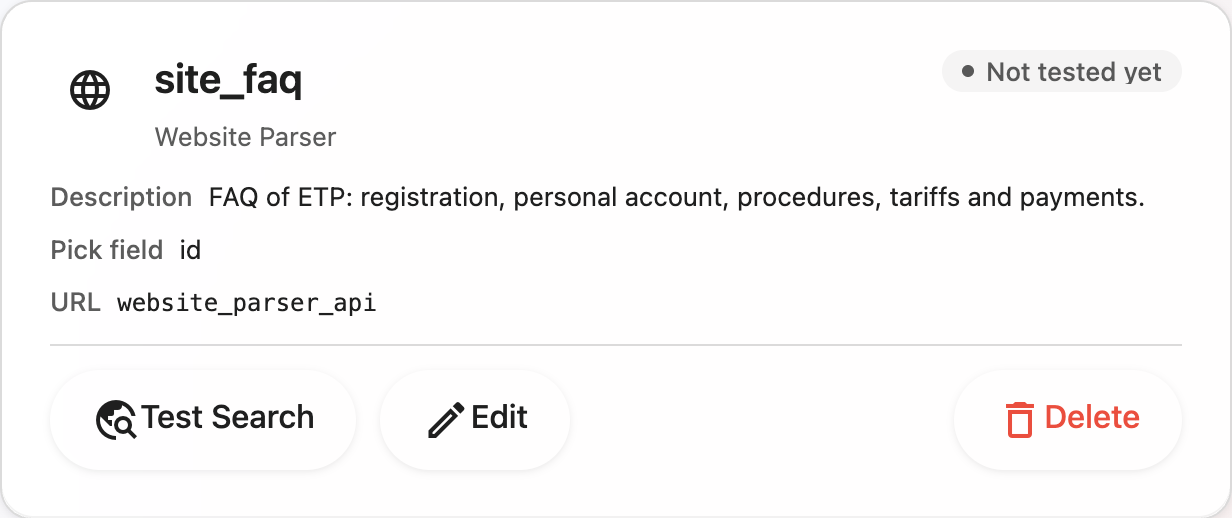
- In Form fields (or Data sources / Knowledge), add or link the web parsing source so the agent can query it (e.g. as a searchable knowledge source or as a field of type “from source”).
- Save the agent.
Step 5: Test in the widget
- Open the chat widget (or Telegram) and ask questions that should be answered from the parsed pages.
- Verify that answers are accurate and that the agent uses extracted images in the reply when they add value (e.g. “Where is the button?” → answer + screenshot).
Summary of setup parameters
| Parameter | What it does |
|---|---|
| URL(s) | Starting page(s) to parse (e.g. docs root, product category). |
| Crawl depth | How many link levels to follow from the start URL. |
| Chunk size | Size of each text block for search (e.g. 500–1000 chars). |
| Overlap | Overlap between consecutive chunks (optional). |
| Image extraction | Store images with chunks so the agent can show them in the dialog. |
| Refresh | Re-run parsing to update content after site changes. |
Why try it for your case
If your knowledge lives on the web — documentation, product pages, help articles — web parsing removes the bottleneck of manually copying content into another system. You keep a single source of truth (your site), and the agent stays in sync by re-parsing on a schedule or on demand. The fact that images are extracted and used in search and in the chat makes the experience much closer to “I’m reading the right page with the right picture” — which increases trust and reduces support load. Give it a try with one documentation URL or one product section; you’ll see in minutes whether it fits your use case.
Related articles
- Combine with API-powered data sources when you need live APIs alongside static web content.
- Use Google Sheets as a data source for tabular catalogs; use web parsing for long-form and visual content.
- Keep answers consistent with the Q&A knowledge base; use web parsing for full docs and illustrations.
- Send leads and context to your CRM with CRM integrations that deliver ready-to-work leads.
- See how every conversation turns into a lead in Lead management with full dialog history.