
Feature overview
The new data source type lets you connect Google Sheets as a searchable database. Agents automatically find matching rows, show results to users, and save selected records to leads — all without writing a single line of code.
Unlike traditional API data sources, Google Sheets doesn't require endpoint development or server configuration. Simply share a spreadsheet link, specify column names — and the data becomes available for intelligent search.
Business applications
Educational platforms and corporate training
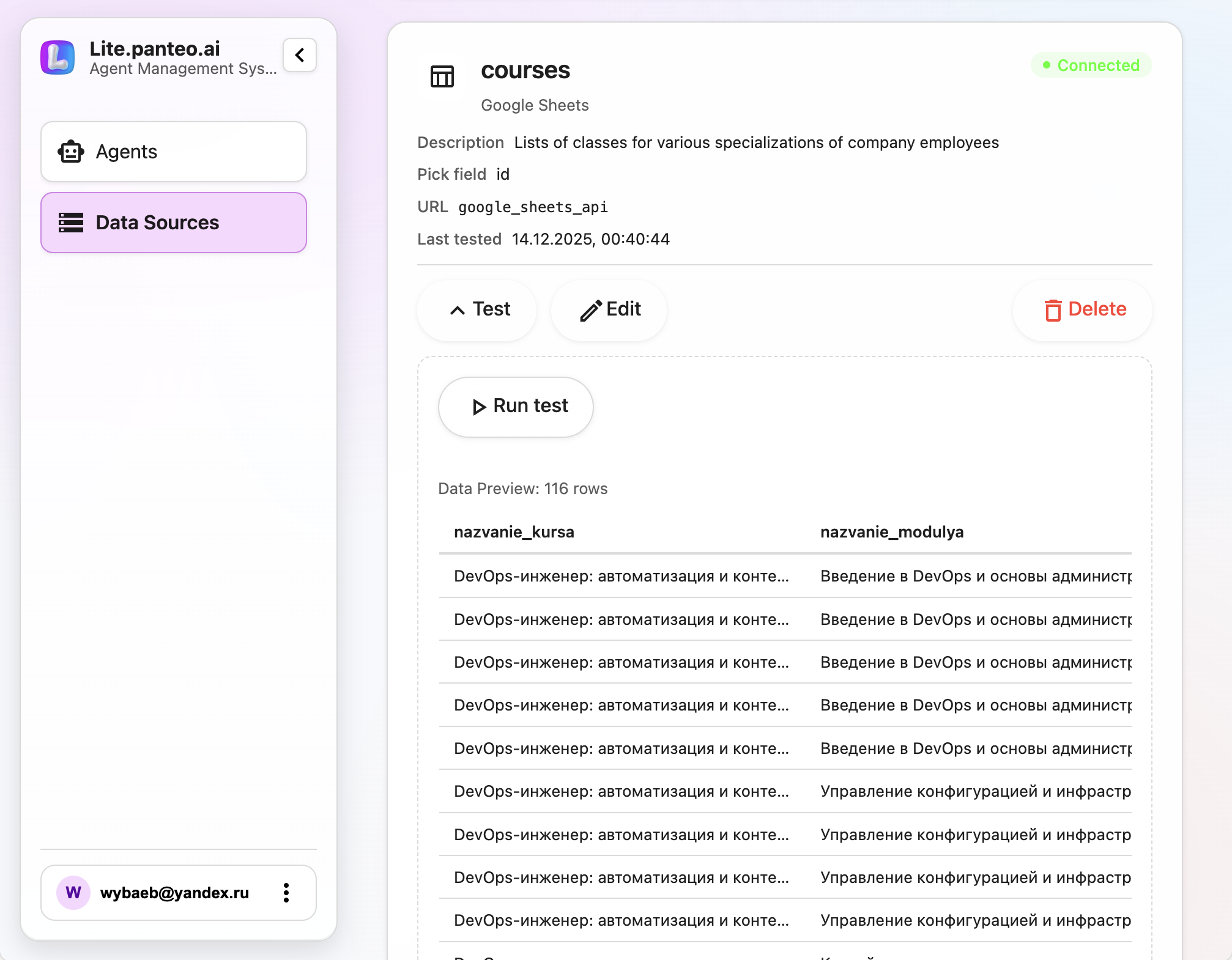
Store your course catalog, trainings, and webinars in a Google Sheet. The agent finds relevant courses for queries like "Docker courses", "network technology training", automatically enrolls employees, and sends data to your LMS.
Use case example:
- Columns: Course Name, Module, Session Type, Duration, Format
- Agent searches by keywords (SDN, DevOps, NoSQL)
- On enrollment, saves full object: name, format, duration — all available for integrations
Product and service sales from price lists
Upload your product catalog to a Google Sheet. When a customer asks "do you have RTX 4070 laptops", the agent instantly finds matches, shows specs, prices, and SKUs, then passes data to CRM integration for order processing.
Benefits:
- Update pricing through Google Sheets without code access
- Data cache refreshes automatically (1-hour TTL)
- Search with typos and transliteration (user types "nokiya" → finds "Nokia")
FAQ knowledge base and documentation
Instead of manually populating the Q&A knowledge base, import a ready-made spreadsheet with questions and answers. The agent searches for relevant entries and supplements responses with context from other sources.
Scenario:
- Columns: Question, Answer, Category, Tags
- Agent searches by semantics (substring + keyword matching)
- Finds multiple close matches and synthesizes final response
Booking and scheduling
Publish service schedules, specialists, or conference rooms in a Google Sheet. The agent shows available slots, books the selected option, and records in Google Calendar or sends email confirmation.
Detailed instructions
Step 1: Prepare your Google Sheet
- Create a spreadsheet in Google Sheets
- Fill with data:
- First row — column names (ID, Name, Price, Category)
- From second row — actual data
- Publish the spreadsheet:
- Click Share settings → Anyone with the link
- Or: File → Share → Publish to web
- Copy the sharing link
Important: The spreadsheet must be public (Reader access). Don't place sensitive data in public sheets!
Step 2: Add a data source
-
Navigate to Dashboard → Data Sources → Add Source
-
Select type Google Sheets
-
Fill the form:
Internal name: for example,
productsorservicesDescription: "Company product and service catalog"
Sheet link: Paste the copied link or spreadsheet ID
Select sheet: Choose the needed sheet (tab) from dropdown
-
Configure field names (3 modes):
○ First row contains field names (recommended)
- System automatically loads the first row
- Normalizes names: "Course Name" →
course_name - Supports Cyrillic (transliteration)
- Duplicates get indices:
name,name_2,name_3
○ Specify names manually
- Enter comma-separated or one per line
- Example:
id, name, price, category - System normalizes to JSON-compatible keys
○ No names
- Automatically:
field_0,field_1,field_2...
-
Row identifier (how system distinguishes records):
Fields from table:
id— if exists in table (auto-selected)email,name— any unique field
Technical values:
- [rowindex] ⚠️ Row number (may break if order changes)
- [field_0] First field (if names not defined)
-
Click Refresh to reload current data
-
Test via Test button — see table with first 20 rows
Step 3: Connect to an agent
- Open your agent in Dashboard → Agents
- Go to Form fields section
- Add a new field:
- Name: for example,
product(source)— use your source name - Type: select type with
_picksuffix (created automatically) - Description: "Selected product from catalog"
- Name: for example,
- Save the agent
Step 4: Test in chat
Open chat with the agent and try:
User: Show me laptops under $1000
Agent: Found products:
       1. HP Laptop 15 - $850
       2. ASUS X515 - $750
       ...
User: I'll take the first one
Agent: You selected "HP Laptop 15" for $850
Step 5: Configure integrations
Data from Google Sheets can automatically flow to:
- CRM systems (Bitrix24, Salesforce) — full selected row object
- Email — course, product, or service details
- Telegram — enrollment notifications
- Database via webhook
Learn more in Integrations that deliver ready leads.
Technical features
Caching and performance
- Data cached for 1 hour (TTL 3600 seconds)
- First request loads the sheet, subsequent — instant
- LRU eviction when plan limit exceeded
- "Refresh" button forces data reload
Cache limits by plan:
- Free: 10 MB
- Basic: 100 MB
- Pro: 500 MB
- Max: Unlimited
Benefits of smart search
Finds even with typos
Agent understands queries with errors:
- Customer types "Nokiya" or "Nok1a" — finds Nokia products
- "Laptopp" — finds laptops
- "Consulttion" — finds consultation
This saves operator time who previously manually corrected typos.
Works with non-English names
Spreadsheets with Cyrillic headers work automatically:
- Columns "Имя", "Телефон", "Email" — all recognized
- Can mix Cyrillic and Latin names
- Duplicate columns handled automatically (get numbers)
Quick updates without a programmer
Changed prices in Google Sheet? Data updates for the agent within an hour automatically. No need to:
- Call a developer
- Change code
- Restart system
Just edit the spreadsheet — done!
<strong>Technical details (for advanced users)</strong>
Caching
- Data updates every hour automatically
- "Refresh" button loads changes instantly
- Cache limits: from 10 MB (Free) to unlimited (Max)
How search works
System analyzes all spreadsheet columns and finds matches:
- Exact matches shown first
- Partial matches (word in description) follow
- Considers number of matched words in query
Data storage
When selecting, all fields of the chosen row are saved:
- Name, price, category, description
- Available for integrations and reports
- Data doesn't disappear even if spreadsheet deleted
Comparison with other sources
| Feature | Google Sheets | Basic API | Google Calendar |
|---|---|---|---|
| Setup | No code | Requires API | OAuth authorization |
| Updates | Edit spreadsheet | API changes | Auto-sync |
| Search | Smart search with typos | Via API | By dates |
| For whom | Any user | Developers | Meeting booking |
Use cases and examples
Example 1: Electronics e-commerce
Create a product spreadsheet:
| SKU | Name | Price | Stock | Category |
|---|---|---|---|---|
| SKU-1001 | HP Laptop 15 | $850 | 5 pcs | Electronics |
| SKU-1002 | Logitech MX Mouse | $65 | 12 pcs | Accessories |
Scenario:
Customer asks: "Do you have laptops under $1000?"
Agent finds and responds: "Found HP Laptop 15 for $850, 5 in stock"
Customer: "I'll take it"
Agent saves selection and sends to CRM SKU, name, price — ready order for manager.
Example 2: Clinic or beauty salon
Manage specialist schedule in Google Sheet:
| Specialist | Service | Day | Time | Price |
|---|---|---|---|---|
| John Smith | Consultation | Monday | 10:00 | $50 |
| Mary Johnson | Diagnostics | Tuesday | 14:00 | $40 |
Scenario:
Customer asks: "When can I see John Smith?"
Agent responds: "John Smith provides consultations on Mondays at 10:00, price $50"
Customer: "Book me"
Agent saves booking with specialist, service, time, and price.
Example 3: Real estate agency
Manage property database in Google Sheet:
| Address | Bedrooms | Area | Price ($M) | Subway |
|---|---|---|---|---|
| 123 Main St | 2 | 700 sq | 0.85 | Central |
| 456 Park Ave | 3 | 950 sq | 1.2 | Uptown |
Scenario:
Customer asks: "2-bedroom near subway under $1M"
Agent finds: "123 Main St - 2BR 700 sq ft, $850K, Central subway"
Customer: "Perfect"
Agent saves selection with address, area, price — manager gets ready lead for call.
Security and limits
Public vs private spreadsheets
⚠️ Current version works only with public spreadsheets.
Don't place in public sheets:
- Personal data (names, passports, addresses)
- Financial information
- Trade secrets
- Confidential contracts
For private data use Basic API with authorization on your server.
Planned: OAuth authorization for private sheets (roadmap Q1 2025).
Google Sheets API quotas
Google Sheets API has quotas:
- 300 requests per minute per user
- 100 requests per minute per project
Our system is optimized:
- Caching reduces Google API requests
- Load entire sheet in one request
- 1-hour TTL = maximum 24 requests per day per sheet
Plan limits
Cache volume management in Dashboard → Settings → Plan:
- Free: 10 MB cache (≈5000 rows)
- Basic: 100 MB (≈50000 rows)
- Pro: 500 MB (≈250000 rows)
- Max: Unlimited
When limit exceeded, LRU eviction applies — oldest (least recently used) caches are removed.
Troubleshooting
Error "Spreadsheet not found or not public"
Solution:
- Verify spreadsheet is published (see Step 1)
- Ensure link is correct
- Try opening link in browser incognito mode
Error "Method doesn't allow unregistered callers"
Cause: Server technical settings
Solution: Contact your system administrator or support
Search doesn't find data
Solution:
- Check "Field names" settings — are columns defined correctly
- Click Refresh button to reload data
- Try Test — ensure data loaded
- Use more specific queries
Wrong course/item saved
Cause: Agent may confuse search results
Solution:
- Improve row descriptions in spreadsheet (add unique details)
- Use specific queries ("Docker containers" instead of "containerization")
- When selecting, state exact name from results
Best practices
Spreadsheet structure
✅ Good:
- First row = column headers
- Unique column names
- All important fields filled
- Single data type per column
❌ Bad:
- Empty rows at the beginning
- Merged cells
- Formulas in headers
- Duplicate column names (without indexing)
Naming conventions
For better performance, name columns clearly:
id— unique identifiername/title— titlecategory/type— categoryprice— pricedescription— description
System auto-normalizes, but clear names simplify integrations.
Search optimization
Fast search:
- Short queries (1-5 words): "SDN", "Docker", "Cassandra"
- Substring match gives instant results
Precise search:
- Long queries: "Evaluate SDN/NFV application in networks"
- Keyword extraction finds rows with maximum matches
Fuzzy search:
- Typos handled: "Dokcer" → "Docker"
- Transliteration: "telefon" → "телефон"
Integration with other features
Combined with Q&A base
Use Google Sheets for structured data + Q&A base for text answers. Agent searches for course in spreadsheet, then supplements description from knowledge base.
Linked with Google Calendar
Store service catalog in Google Sheets, available slots in Google Calendar. Agent first shows services from spreadsheet, then offers to select time from calendar.
Multi-source agents
One agent can use multiple sources:
courses(source)— Google Sheets with coursesteachers(source)— Google Sheets with instructorsschedule(source)— Google Calendar with slots
Agent automatically calls the right source depending on dialog context.
Related articles and resources
Internal resources
- API data sources — alternative for dynamic data
- Google Calendar integration — working with schedules and meetings
- CRM integrations — where to send spreadsheet data
- Lead management — working with saved data
- Form fields configuration — field types and validation
External resources
- Google Sheets - official site
- Google Sheets API documentation
- Google Cloud Console
- Google Workspace for business
Start using Google Sheets right now! It's the easiest way to give your agent access to data without programming. Just create a spreadsheet, paste the link — and the agent starts working with your product, service, or course catalog.