
When important knowledge is trapped in PDFs
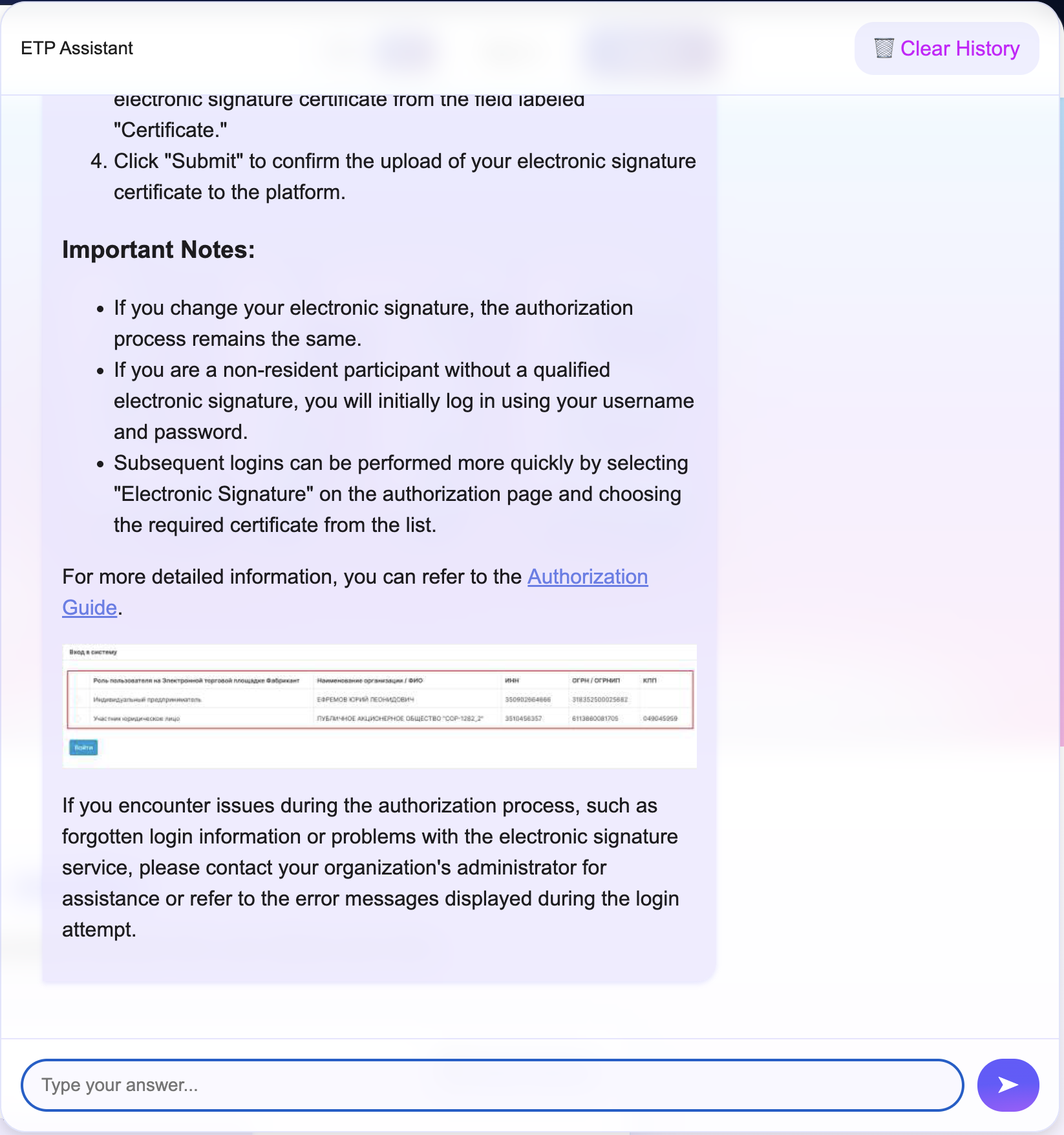
If your knowledge already lives in PDF / DOC / DOCX (manuals, policies, catalogs, training), it often behaves like an “archive”: everything is there, but getting the exact answer fast can be surprisingly hard. You want the agent to reply confidently — with proof, with a link to the source, and when it helps, with the exact screenshot/diagram right inside the chat.
That’s what the Uploaded Documents data source in Lite.panteo.ai does. You upload files in the dashboard, and the platform builds a RAG index: it extracts text, splits it into chunks, attaches metadata (document link + page), extracts illustrations, and (optionally) enables ontology-aware search (sections, headings, definitions, tables, lists). The result feels very different: the agent doesn’t say “somewhere in the PDF” — it answers with the fragment + the image + the page link.
Common friction points this solves
- The documents exist, but finding the exact place where something is stated takes time.
- Support and sales end up answering similar questions over and over from the same materials.
- “Where is this button?” questions often need a visual — and the conversation turns into sharing screenshots.
- Documents get updated, while a Q&A base (if you have one) doesn’t always stay in sync.
With Uploaded Documents, your files stay the single source of truth — and the agent does the retrieval work, including links and visuals.
Use cases: where this shines
Help center and product documentation
Upload PDF manuals and technical docs. The agent retrieves the relevant passage by meaning and can surface a diagram or UI screenshot from the PDF plus a link to the exact page — fewer tickets, faster resolution, higher trust.
Policies, compliance, and regulations
When structure matters more than keywords, switch to Level 3 (ontology). The agent navigates sections and subpoints, tracks definitions, and handles tables/lists more reliably in long documents.
Training and onboarding
Training PDFs often include tables and diagrams. With document RAG, the agent answers by meaning and can return the right image/table in the reply with a direct source link.
Proposals and catalogs for sales
Turn proposals and catalogs into a searchable asset: the agent finds specs, terms, and configuration details, can show a product image or a catalog page, and links the original document for review.
Why answers feel “verified”: 3 key capabilities
1) Images from PDFs — inside the reply
The system extracts images from PDF (and, when supported, from DOC/DOCX) and attaches them to the right chunks. That means search results include both text and linked illustrations, so the agent can insert the right diagram/screenshot/photo into the chat response.
2) Metadata and links: document + page
Each chunk stores source_url (public file link) and source_page (page number). So the agent can answer with “see p. 5” and provide a link — users can verify instantly, without hunting for the PDF.
3) Ontology (L3): when structure is the answer
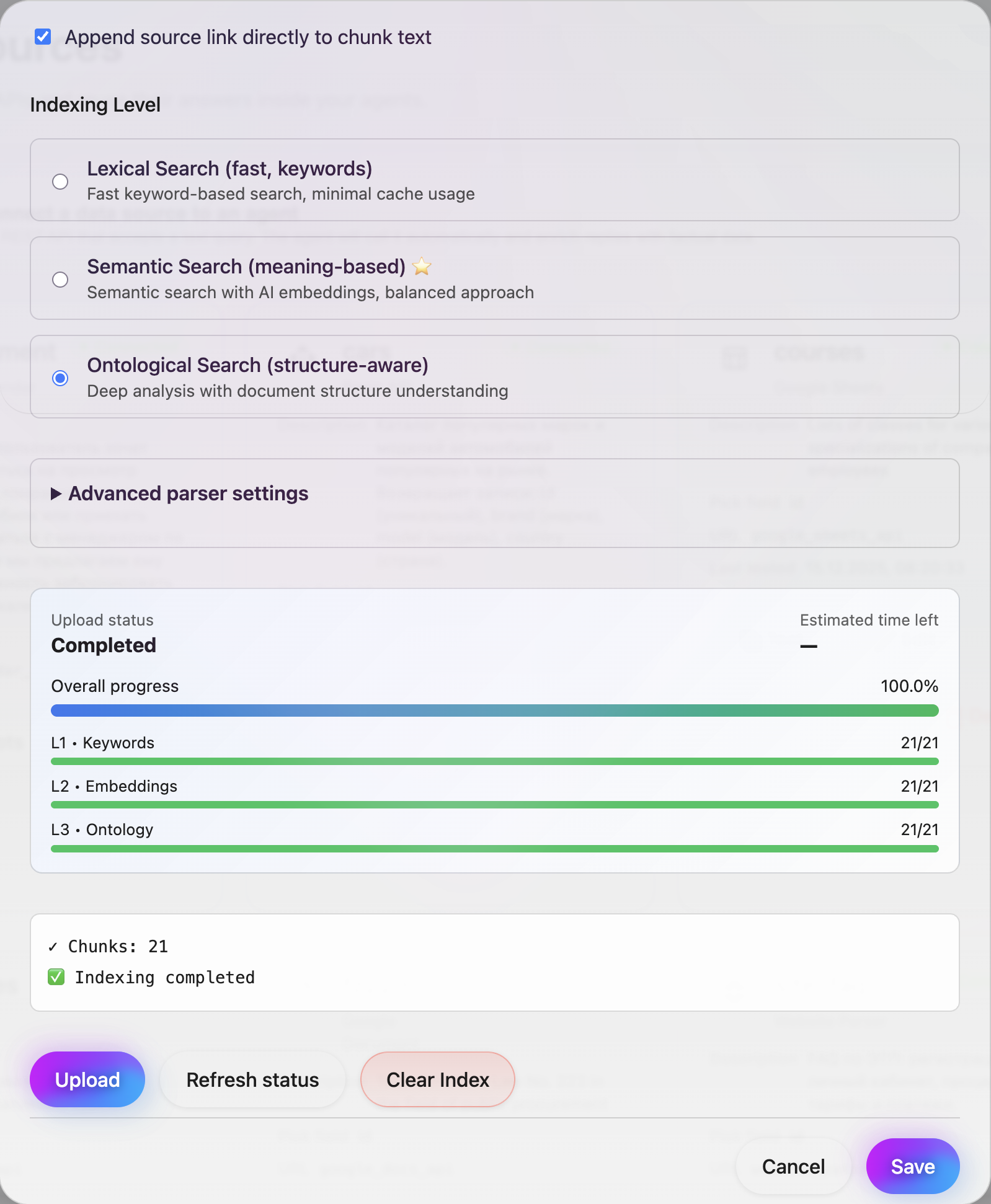
Just like the Google Docs source and the web parsing data source, uploaded documents support ontology-level indexing: sections, headings, definitions, tables, and lists. This is what makes long policies and regulations searchable “by meaning and structure”, not only by matching words.
How to set it up in the UI
Setup in ~10 minutes: from file to answer
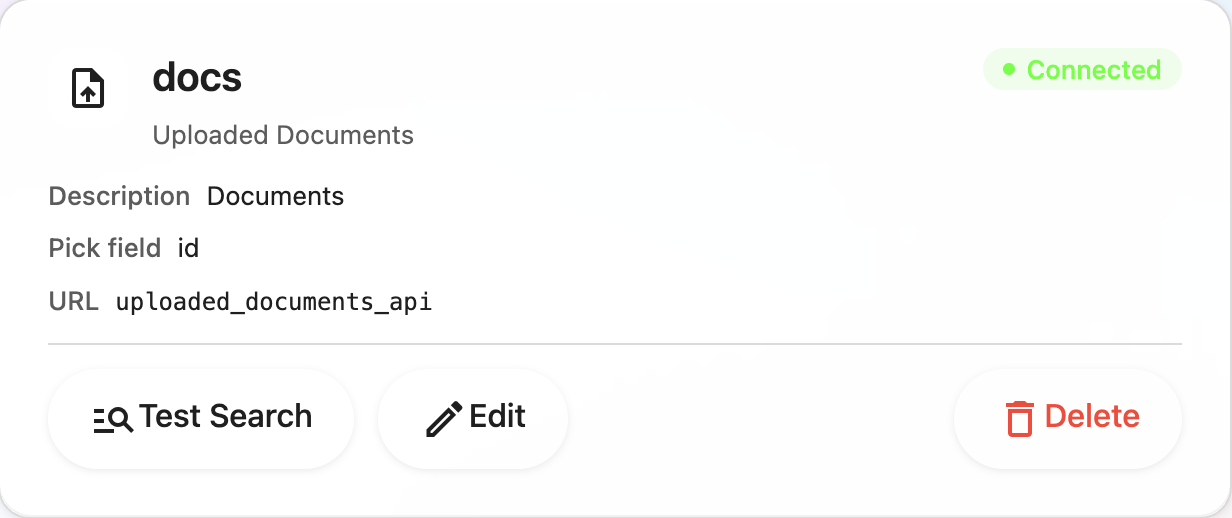
Step 1: Create an Uploaded Documents source
- Go to Dashboard → Data Sources → Add Source.
- Choose Uploaded Documents.
- Enter a name and description (e.g. “Manuals and policies in PDF”).
Step 2: Upload PDF/DOC/DOCX
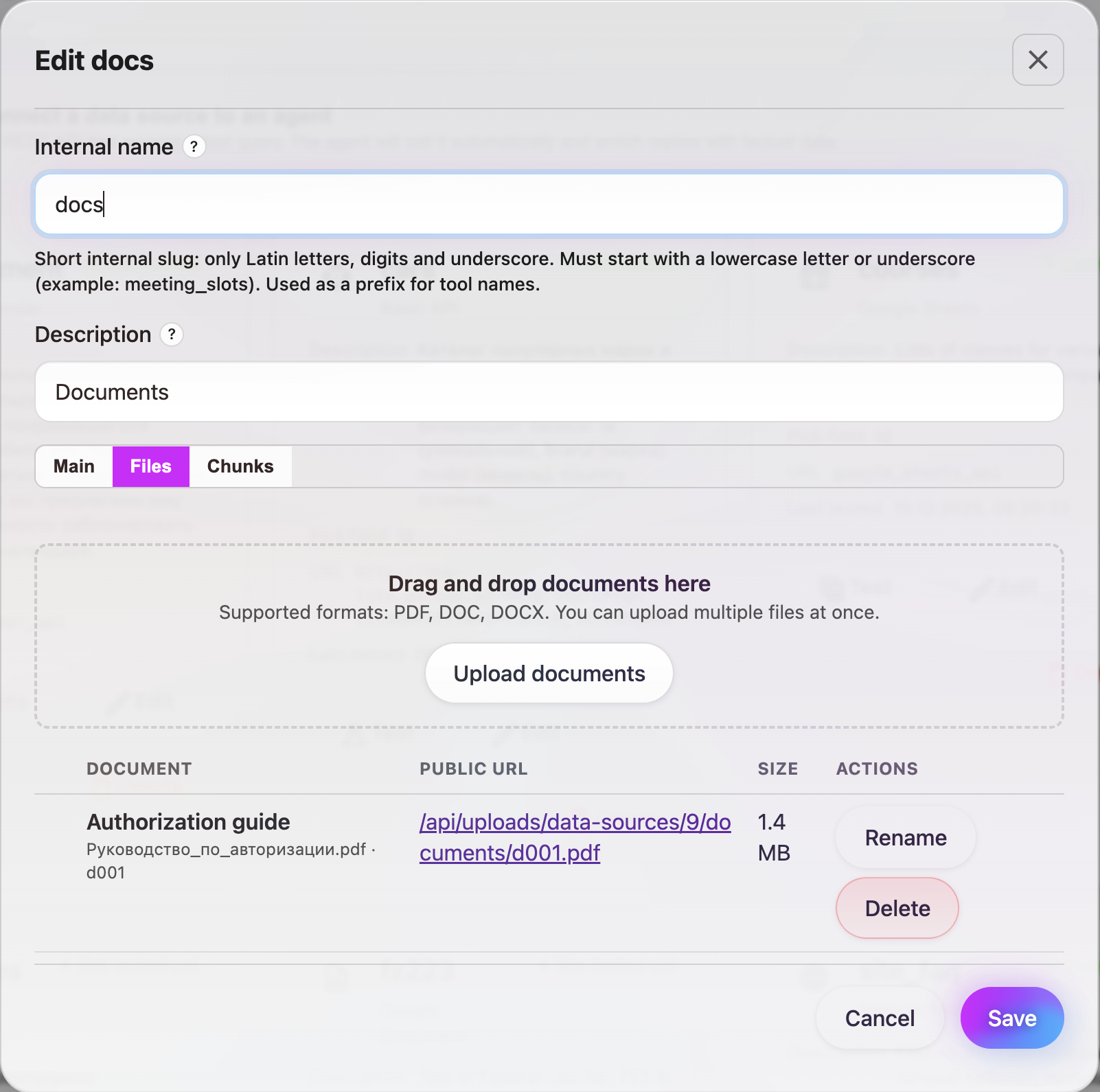
- On the Main (or Files) tab click Upload documents or drag and drop files into the upload area.
- Supported formats: PDF, DOC, DOCX. You can upload multiple files at once (max file size 60 MB).
- After upload, the list shows document name, public URL, and size.
Step 3: Enable images and source links
- Check Include illustrations — images from documents will be extracted and attached to chunks; the agent can show them in replies.
- Check Include source links and optionally Append source link to chunk text — replies can include links to the document and page.
Step 4: Choose search depth (L1/L2/L3)
- Level 1 — Lexical search: keyword search, fast, minimal cache.
- Level 2 — Semantic search (recommended): embeddings, meaning-based search.
- Level 3 — Ontology search: uses document structure (sections, definitions, tables, lists) for complex policies and long texts.
In Advanced you can set chunk size, chunk overlap, and search agent refinement iterations.
Step 5: Run indexing and review chunks
- Click Refresh / Re-index. The system parses documents, creates chunks, extracts illustrations, and builds the selected index level (L1/L2/L3).
- In the Chunks tab you can review fragments, metadata (source_url, source_page), attached illustrations, and ontology.
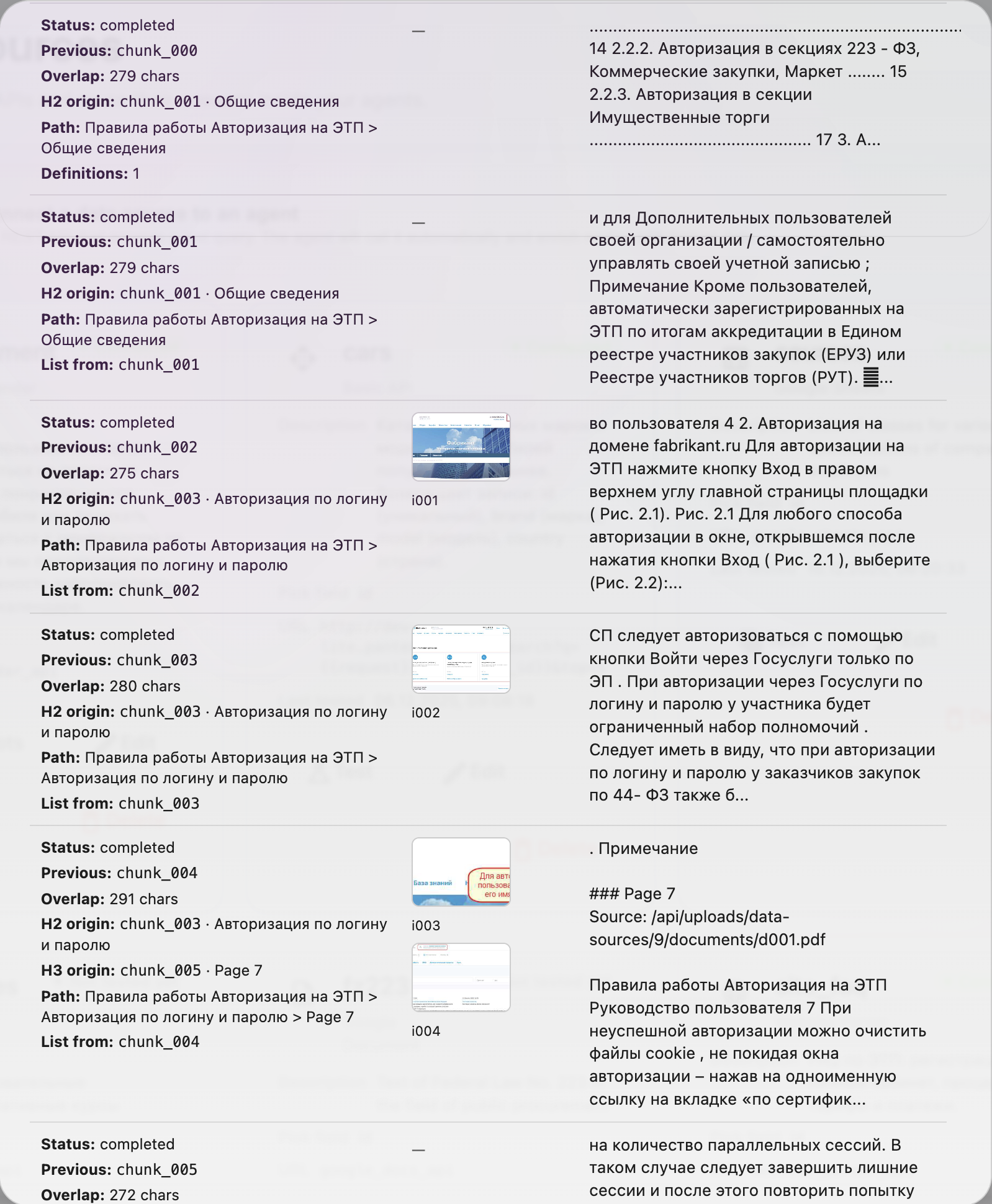
Step 6: Attach the source to your agent
- Open Dashboard → Agents and select the agent.
- In Form fields (or Data sources / Knowledge) link the Uploaded Documents source you created.
- Save the agent.
Step 7: Test it in the chat
- Open the chat widget or Telegram and ask questions that should be answered from the uploaded documents.
- Confirm that answers are accurate and that the agent uses illustrations and document links when appropriate.
Summary of setup parameters
| Parameter | What it does |
|---|---|
| Files | PDF, DOC, DOCX up to 60 MB; upload via button or drag-and-drop. |
| Include illustrations | Extract images from documents and show them in agent replies. |
| Include source links | Add document and page links to search results. |
| Indexing level | L1 — lexical, L2 — embeddings (recommended), L3 — ontology. |
| Chunk size | Amount of text per fragment (e.g. 400 tokens). |
| Chunk overlap | Overlap between adjacent chunks for continuity. |
| Refresh | Re-run parsing and indexing after changing files or settings. |
Try it with one PDF (you’ll feel the difference fast)
If you want the agent to answer from your documents (not generic web knowledge), start small: upload one PDF, enable illustrations, pick an indexing level (usually L2, and for policies L3), and ask a couple of real questions in the widget. You’ll immediately see what changes: sharper retrieval, images in the reply, and links to exact pages that make answers feel trustworthy.
Register in Lite.panteo.ai and connect Uploaded Documents — it’s one of the fastest ways to turn PDF/DOCX into a working RAG knowledge base for your agent.
Related articles
- Combine with API-powered data sources when you need live data alongside documents.
- Use Google Docs as a data source for cloud documents by link; uploaded documents for local PDF/DOC/DOCX.
- The Web parsing data source is for documentation on a website with image extraction; uploaded documents for files.
- Keep consistent answers in the Q&A knowledge base; use uploaded documents for full text and illustrations.
- Send leads from the chat to your CRM via CRM integrations.
- Lead management: Lead management with full dialog history.